

Epson
I am a printer expert working in the printing industry for a long time. When I was new to this profile, one thing I found users asking was the Epson printer factory reset process. Even today, printer users struggle with technical problems and configuration issues, or they just want to reset their device but don't know how. Through this post, my purpose is to help all Epson users do a factory reset and use their devices error-free.
Epson printers are made for efficient printing, but they can pop up errors. Sometimes, the situation becomes like a factory reset, which is required immediately. Since factory reset makes the printer come in its original state, printer users can perform it. But the question is, when is a factory reset required? Want to know? This post will help you know the reasons and the 3 methods to do a factory reset.
Why Is the Epson Printer Factory Reset Needed?
The printer needs a factory reset because of several reasons. You can find below a few of the times when it proves worthwhile.
- The printer is experiencing software errors that lead to printing issues.
- The printer user changes the printer's settings, which causes configuration issues.
- There is a network connectivity issue.
- Issues with the latest firmware update.
- The device is showing error messages consistently.
These are some situations when you need to reset your Epson printing device. However, there are many situations when you need to learn how to factory reset Epson printer.
Reset Epson Printer to Factory Settings: 3 Easy Methods
Are you an Epson printer user dealing with issues? Factory reset is a good solution. You can discover several ways to reset your printer. In this section, I am explaining the three top and easiest methods.
Method 1: Using Epson Printer's Control Panel
It is one of the time-saving and easiest ways of resetting a printer. But the thing is, how will you start? Well, here are the steps. Learn 'how to reset Epson printer to factory settings' below.
- Move towards your Epson printing device and power it on.
- Your next move is to find the control panel on your device.
- Once you find it, move towards the Setup/Settings menu.
- After that, look for Restore Default Settings.

- You will find the above option under the Setup/Settings menu.
- Now, you will see that a confirmation window has appeared.
- The Windows asks users to confirm the reset.
- Make sure to read everything carefully.
- Next, choose Yes or OK and then move with the reset process.
- Wait for some time till the reset process is complete.
After you perform all the steps given above, your printer will restart automatically. If not, go along with the manual steps. Later, set the language you want and make changes to the date and time.
Method 2: With the Reset Button
Do you want to perform a quick Epson printer factory reset? The next method you can choose is to use a reset button. For more, refer to these instructions.
- The first thing you need to do is to ensure that you have turned off your printer.
- Also, confirm that you have disconnected your device from the power source.
- Now, move to the back or side of your printer.
- Press and hold the button. You can do it with a paperclip.
- The next step is to hold the printer's Reset button.

- Further, try reconnecting your printer to the power source.
- When you find that the printer's lights are blinking, leave the button.
- Following this, wait and allow the reset process to complete.
- Finally, don't forget to test your printer.
That's how you can reset your printer and prepare it for printing. Just follow the above instructions carefully and allow the reset process to complete.
Note: When you are using the Epson printer reset button, you will see that the reset is complete when the lights stabilize or turn off properly.
Method 3: Via the Epson Adjustment Program
Want to explore other methods? This section will factory reset your Epson printing device with the help of the Epson adjustment program. Check out these steps and follow them.
- The first thing to do is go to Eposn's official site.
- You can also visit a trusted source.
- Next, start downloading the Epson Adjustment Program.
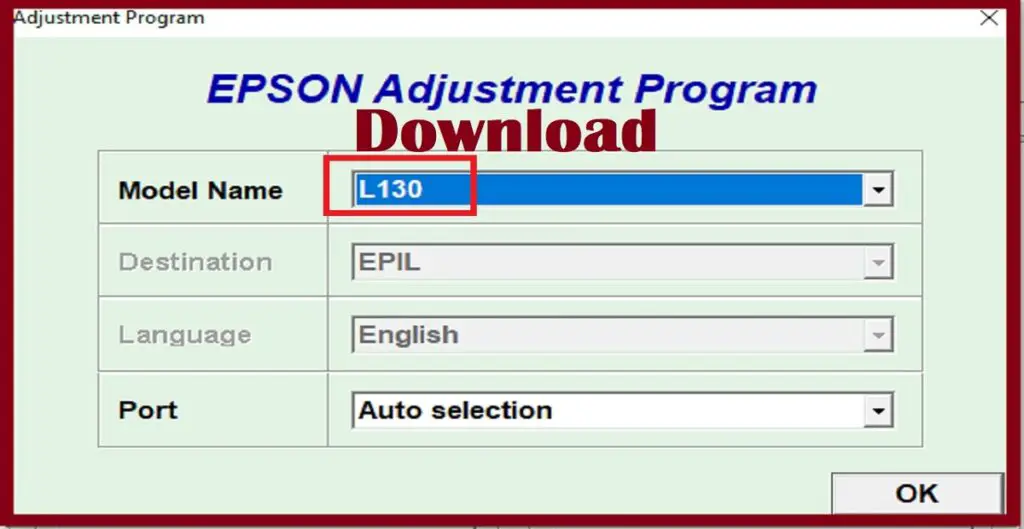
- While downloading the program, consider the model of your printer.
- After that, follow the instructions to download the program.
- Go to programs on your computer.
- Start opening the Epson Adjustment Program on your system.
- When the above program's interface displays, select your printer.
- Select your printing device from the available list of printers.
- Further, choose the Reset option from various options available.
- Tap on the Execute/OK button and start the process.
- Don't turn off your device until the process completes.
- Lastly, turn off your printer and then turn it back.
These are a few easy-to-follow steps that help you reset your device. After reading them, be sure to follow them carefully for a successful reset.
Conclusion
When using an Epson printer, a user can notice several issues that interrupt the device's functioning. In this case, a factory reset can work. The process helps the printer go back to its original state. Moreover, this process also works well when the user wants to sell the device. There are three ways users can do an Epson printer factory reset. One is with the reset button, using the control panel of an Epson printer or through the Epson Adjustment Program.
Frequently Asked Questions (FAQs)
Why And When Will I Need To Reset My Epson Printer?
The printer reset is necessary in many
cases. You can do it when your printer gives error messages, or you are facing
configuration issues.
●
When you fail to complete the
installation,
●
At times, your printer can't
connect to Wi-Fi.
●
Your printer is giving out error
codes or technical issues.
How Do I Reset My Epson Printer?
If you want to do an Epson printer factory reset, go through these quick and easy steps.
- First, disconnect your printer from the power source.
- Next, press
and hold the power button.
- After that,
press the Stop/Reset button.
- Hold the
button for around 5 seconds.
- Finally, wait until your device resets itself.
Can I Reset My Epson Printer Using The Control Panel?
Follow these steps and reset your printer
properly to factory settings. Here are the steps you can check out.
- Find your printer and power it on.
- Choose Restore Default Settings, then.
- Read the
instructions and confirm the process.
- Wait a few
moments and complete the process.
- Lastly, start setting up your printer again.


Get The Best Blog Stories into Your inbox!
Sign up for free and be the first to get notified about new posts.