

Canon
Printers have become an essential part of our professional and personal lives. Making the printing of documents and information convenient for us. In this printing sector, Canon is one of the most popular brand names, known for its unmatched efficiency and reliability. Among all the various printer options, Canon PIXMA MX490 is a well-recognized model that offers comprehensive options that allow the user to leverage both USB cable and wireless connection. However, just like the other electronic devices, the Canon PIXMA MX490 may also encounter some problems while printing. Among all these issues, there is a common Canon PIXMA MX490 printing blank pages issue faced by the users.
If you are struggling with this and searching for a solution, then you might be in the right place. In this post, we’ll explore 'How to fix Canon Pixma MX490 Printing Blank Pages Issue'. But, before moving on to that, let’s first understand the core of the problem for future precautions.
Common Reasons for Canon PIXMA MX490 Printing Blank Pages
Printing blank papers with your Canon PIXMA MX490 can be frustrating and a real puzzle to solve because there could be various reasons behind this issue. However, in this section, we’ll explore the common cause of this problem with a detailed analysis. Understanding the cause of the problem will help you troubleshoot the issue of your printer.
-
Insufficient Ink Cartridges level
An empty or low ink cartridge in Canon Pixma MX490 printer is one of the most common causes of printing blank pages. If your printer does not have enough ink, then it won’t be able to print properly. Thus, regularly check the ink level of the printer’s cartridge to avoid such issues.
-
Blocked Nozzles
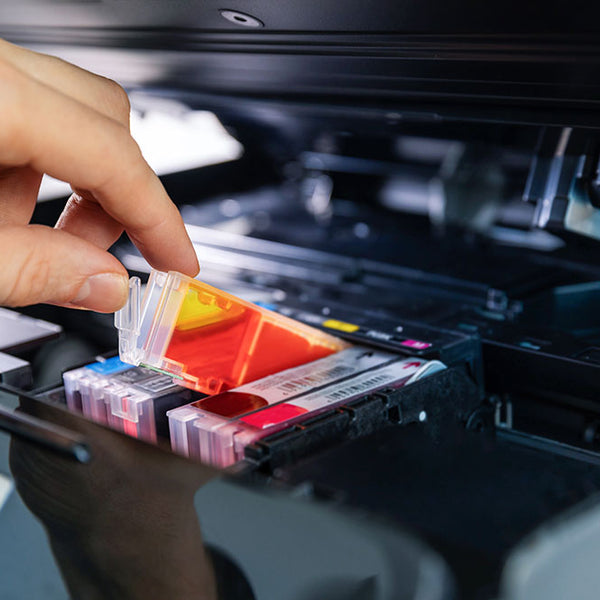
Another common reason for 'Canon PIXMA MX490 printing blank pages' is blocked nozzles. Due to the air exposure, the ink can dry up over time, which prevents the ink from dispatching on the paper. This results in your printer printing black pages. To avoid this happening, regularly clean the printhead and nozzles.
-
Paper Jams or Misfeeds
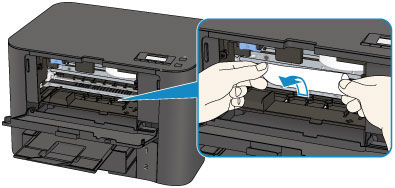
Although 'paper jamming' is a less common cause, but there are a lot of users who still struggle with it. To make sure your Canon PIXMA MX490 is not having this issue, you need to check for any paper stuck in the printer that might be limiting its functioning. If you find anything, make sure to clean it before testing it out again.
-
Incorrect Printer Settings
In some situations, the problem is not with the printer but with the printer settings, which malfunction and result in blank page printing. Therefore, it’s important to check your printer settings to ensure that everything is correctly configured.
-
Outdated software and drivers
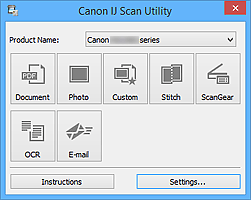
Using outdated software and drivers is a very big reason that leads many users to printing problems. To avoid this problem, your printer’s driver and firmware have been updated. Updating these will automatically resolve the majority of technical issues and 'how to fix the Canon blank pages problem'.
Once you understand these common reasons, you’ll automatically be taking a greater step towards resolving the printing blank page issues with your Canon printer.
How to fix Canon Pixma MX490 Printing Blank Pages? [Troubleshooting Guide]
In this section, we’ll discuss the method to troubleshoot the 'Canon PIXMA MX490 Printing Blank Pages problem' and achieve convenience again. So, let’s dive into the method to address the Canon PIXMA MX490 blank page error.
-
Check the Ink Cartridges
As we mentioned earlier, empty or low ink is one of the most common reasons for Canon MX490 blank page errors. But here are the things that you can do:
-
Start with opening the printer cover to access the ink cartridges.
-
Second, remove the cartridge and look for the ink level.
-
Replace the cartridge with a new one if it has run out of ink.
-
Make sure to put the cartridges in place and ensure they are properly seated in their slots.
-
Cleaning the Printhead and Nozzles
The printhead and nozzles can become blocked with dry ink over time. Therefore, it's important to clean them regularly. Here are the steps to follow to clean the printhead:
-
First, turn off the printer and unplug it from the power outlet.
-
Carefully take out the ink cartridges and place them aside.
-
Now, use a clean cloth, dip it in distilled water, and start gently wiping the printhead.
-
Lastly, reinstall the ink cartridge in its slot and run a cleaning cycle using the printer’s software.
-
Adjust Your Printer Settings
Incorrect printer settings might be the reason for your Canon PIXMA MX490 blank page error. Here’s the way you can access your printer settings:
-
Open the control panel on your computer and search for devices.
-
In the devices section, select printer and then properties.
-
Now, check the information is correct (paper size, type, and print quality settings).
-
Lastly, 'click OK' to save your latest correct configuration and try printing a test page.
-
Run Diagnostic Tests
Running diagnostic tests is an effective way to pinpoint the issue and troubleshoot your printer effectively. Here are the steps you should follow to troubleshoot Canon MX490 more effectively:
-
Go to the control panel and access the printer’s maintenance menu through the device section.
-
Now select the diagnostic test and follow the given instructions.
-
Inspect the test results to identify any specific issues.
-
Lastly, take appropriate action based on the test findings.
-
Updating Printer Driver and Firmware
Updating your printer drivers and firmware is an effective way to troubleshoot your Canon Pixma MX490. Maintaining and updating your printer’s system ensures smooth functioning and compatibility with its operations. Here are the steps to update your printer systems:
-
Go to the Canon official website and find the support section.
-
Then, search your printer model (Canon PIXMA MX490) and download the most recent firmware and driver updates.
-
Follow the instructions and install the drivers.
-
Lastly, restart your computer and printer to set up the latest version.
-
Performing a Factory Reset on the Printer
Sometimes, the problem of no ink output is caused by the misconfiguration of the printer setting. Therefore, a factory reset plays an important role by restoring the printer to its original settings. This makes the printer function once again. Here are the steps you should follow to perform a factory reset:
-
Turn off the printer and remove the power cable.
-
Now, hold the stop button while reconnecting the power cord.
-
Hold the 'Stop' button until you receive the reset confirmation message.
-
Later, release the button to allow the printer to complete its whole factory reset process.
-
Replacing Defective Hardware
If you still haven’t found any solution to your Canon PIXMA MX490 black print page error, then it must be related to hardware issues. Start by inspecting the defective components and replacing them if necessary. Here’s the step you should follow:
-
Check the ink cartridges for any damages and leaks.
-
Review the printhead for any damages or blockages. Clean or replace if necessary.
-
Make sure all the connections and cables are securely intact.
-
If you find any part defective or faulty, consider replacing it with a new one to ensure its functionality.
Conclusion
The Canon PIXMA MX490 is a reliable option for conveniently printing important documents and information. However, for multiple reasons, it can result in printing problems, such as blank printing page errors. As a user, experiencing this error can be frustrating. To resolve this issue, follow our detailed guide on 'How to Fix Canon PIXMA MX490 Printing Blank Pages'.
We hope that, through our guide, you found the solution to the error that you are encountering with your Canon PIXMA MX490. Whether it’s a problem with ink cartridges, software, or defective hardware, we try to cover all. However, if you are still not able to find the solution to your Canon MX490 problems, then try to connect with the Canon support team to resolve the issue with an expert solution.

Get The Best Blog Stories into Your inbox!
Sign up for free and be the first to get notified about new posts.