

Canon
Many people usually wonder "How to connect my Canon TS3522 printer to WiFi" once they get their brand-new printer. If you are also facing this situation, then you are not the only one. Some people say it is a cakewalk to connect a printer, whereas it is way more challenging, especially if someone is doing it for the first time. Also, printers are prone to face several minor or major errors during the process you might not be aware of. But, no need to panic! I am going to write the full connection process by providing a thorough guide.
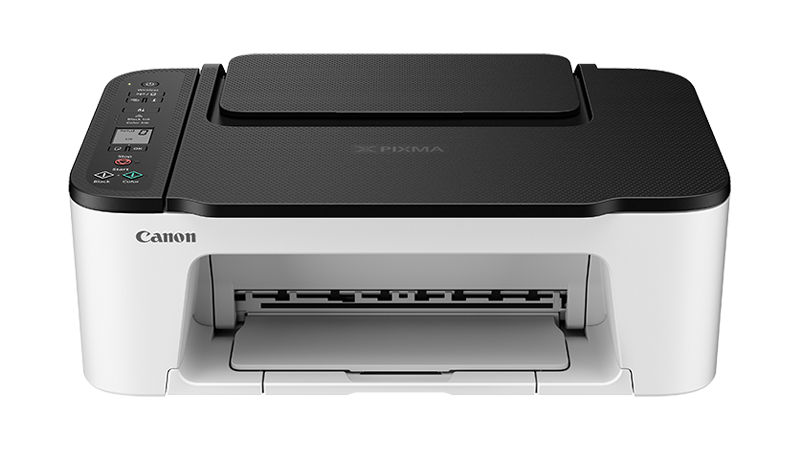
Here, you will read about the two most effective and pinpoint methods to seamlessly connect my Canon TS3522 printer to WiFi without putting much effort into it.
Things to Know Before Connecting Canon TS3522 Printer to WiFi
It is obvious that you might face some challenges or errors when connecting your printer as a first-timer. Thus, below are some quick points you must keep in mind to avoid any complications.
- Keep your printer and PC/phone within the connection range of your WiFi router.
- Check if your printer is compatible with your device's OS version.
- Ensure that the printer settings are correct on your PC or mobile device.
- Download and install the most suitable and latest driver for your printer.
There could be some other requirements depending on the device and the OS version you are trying to connect your printer to.
Method 1: Using Canon PRINT Inkjet/SELPHY
If you are planning to connect your printer to WiFi using your smartphone, then you need to download the Canon Print Inkjet/Selphy on your device. Here is the process of how to connect my Canon TS3522 printer to WiFi, which you can use.
- First, you need to ensure that a wireless network is available for the connection and your smartphone is connected to it.
- Next, connect your smartphone device to your wireless network connection.
- Now, launch the Apple App Store or Google Play Store on your mobile phone and download and install the Canon PRINT Inkjet/SELPHY app.
- Also, head to the printer and ensure that it is plugged into the power source and is powered on.
- Then, you need to press and hold the wireless connection button until the WiFi icon flashes.
- Moreover, go over to your mobile device and head to the WiFi option in Settings.
- Turn on the WiFi toggle, look for the connection named printer's name, and select it.
- After that, launch the app on your device.
- And when you are asked, "Do you want to search for the available printers?" click on the Yes option.
- Now, the Select Wireless Router page will appear on the screen and show all the available network lists.
- Click on the network name you want to connect your device and then type the correct password for that network.
- Afterward, tap on the OK option to complete the connection process.
- If you see the prompt "Do you want your smartphone to connect to the same wireless network?" then click on Yes.
- In case you face any issues with the connection, then move on to the next method.
If you follow the above-mentioned guide carefully, then you will be able to connect my Canon TS3522 printer to WiFi and start printing using your smartphone.
Method 2: Via a WPS Connection
This method shares the simple and quick process of "How to Connect Canon TS3522 Printer to WiFi" without the use of any other device.
- First and foremost, ensure that the WPS button is on your wireless router.
- Next, inspect that the printer is plugged in and turned on.
- Then, move to the printer and press and hold the WiFi button until you see the power light flashing.
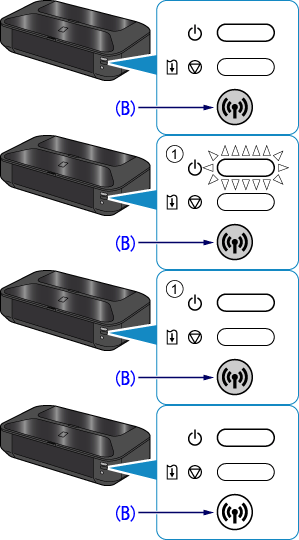
- Now, you are required to press the black print button and then the WiFi button from the printer panel.
- Afterward, ensure that the WiFi light flashes quickly and the power light remains lit.
- Also, move to your WiFi router and press the WPS button on it. (You need to do it within the 2 minutes of the earlier process.)
- The WiFi light will start flashing while searching for the network. (The WiFi and power lights will start flashing when they are connecting to the network.)
- Once the printer has successfully connected to the network, both the power and WiFi lights will stop flashing and remain lit.
- You can perform a test print to check if the printer connection is done properly.
With the help of these two methods, anyone can quickly establish a WiFi connection and enjoy a wireless printing experience. Also, get in touch with Canon customer care or reach out for additional help to get more help on how to connect my Canon TS3522 printer to WiFi.
Frequently Asked Questions (FAQs)
Why Is My Canon TS3522 Printer Not Connecting To WiFi?
Here are some possible common points that could be responsible for your printer not connecting to your WiFi.
- The WiFi connection is restricted for some devices.
- Your printer is not able to scan for your printer.
- The printer and WiFi router are far from each other.
- Not following the correct printer connection
process.
- The printer faces software/firmware errors and other
issues.
Can I Connect My Canon TS3522 Printer To A Linux System?
No, you can't connect
this printer model to the Linux system as it is not compatible with it. Linux
offers compatibility with only some PIXMA series printers, and users can
perform only basic tasks such as printing and scanning. To do that, it is a
must to download the driver on the Linux system to perform the task.
How To Connect My Canon TS3522 Printer To WiFi On IOS?
Here is a quick guide for you to connect a printer to WiFi on your iPhone/iPad.
- Firstly, connect your iOS device to a secure
wireless network.
- After that, switch on your printing device.
- Next, go to the App
Store to install the Canon PRINT Inkjet/SELPHY app.
- Open the app and follow the process to connect the
printer to your iOS device.
- Once the printer is connected to your device, the
WiFi connection will be complete.


Get The Best Blog Stories into Your inbox!
Sign up for free and be the first to get notified about new posts.